How to Convert Video to Images: Big Test of Free Tools
A comprehensive benchmark of free tools to extract image sequences (JPG, PNG, WebP) from video for scroll animation: FFmpeg, VLC, Ezgif, Online-Convert, and VClip tested.
When creating scroll-driven animations with Scrollsequence, the quality and smoothness of your animation depends entirely on the underlying image frames. Ideally, you want to capture every single frame from your source video at full resolution—without missing frames, downscaling, or creating duplicate images.
There are dozens of free tools claiming to convert video into image sequences, but how many of them actually extract 100% of the frames?
To save you trial and error, we benchmarked 5 of the most popular free tools across Windows, Mac, and the web: Ezgif, Online-Convert, VLC Media Player, FFmpeg, and VClip.
Test Benchmark Setup
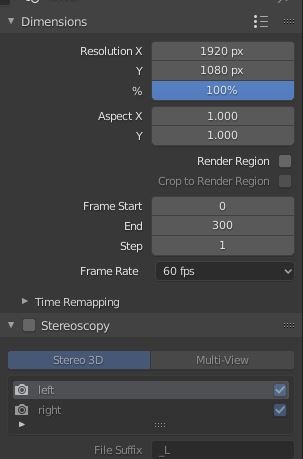
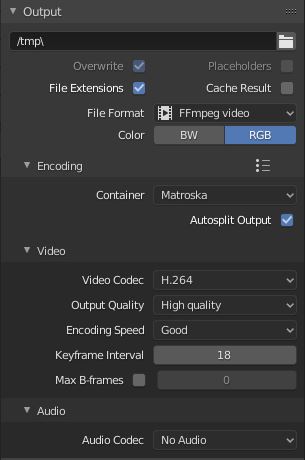
To ensure a completely objective test, we prepared a benchmark video in Blender:
- Duration: 5.0 seconds
- Frame Rate: 60 frames per second (FPS)
- Total Expected Frames: 300 unique frames
- Resolution: 1920 × 1080 (Full HD)
- Codec: H.264 / FFmpeg video container (
.mkv/.mp4) at maximum quality
A perfect export tool must produce exactly 300 unique, uncompressed/high-quality image files matching the native 1080p resolution.
Source video: http://cdn.scrollsequence.com/web/how-to-convert-video-to-images-test-video.mkv
Overall Test Results Summary
| Rank | Tool | Type | Frames Extracted (out of 300) | Accuracy | Rating | Verdict |
|---|---|---|---|---|---|---|
| 🥇 | FFmpeg | Desktop CLI | 300 / 300 | 100% | ★★★★★ | Best overall. 100% frame accuracy & native quality. |
| 🥈 | VLC Media Player | Desktop App | 280 / 300 | 93.3% | ★★★★☆ | Great GUI option, but may drop frames under load. |
| 🥉 | VClip | Desktop App | 150 / 300 | 50% | ★★★☆☆ | Easy screen capture, but limited FPS and BMP only. |
| 4 | Ezgif.com | Web Tool | 101 / 300 | 33.6% | ★★☆☆☆ | 20 FPS & 1200px cap. Download zip failed. |
| 5 | Online-Convert | Web Tool | 51 / 300 | 17% | ★★☆☆☆ | Severe frame dropping. Only 51 frames extracted. |
Testing Online Converters
1. Ezgif.com
Ezgif is one of the most widely used web-based utilities for GIF, video, and image manipulation. It offers dedicated Video to JPG and Video to PNG converters.
Test Results:
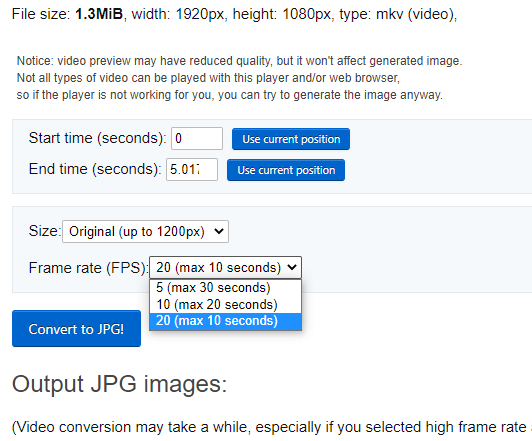
- Max Resolution Allowed: 1200px (downscales 1080p source)
- Max Frame Rate Allowed: 20 fps cap
- Frames Extracted: 101 of 300
- Download Stability: The PNG zip download threw a 404 error during our test.
Rating: ★★☆☆☆ (2/5) — Convenient for quick low-res social memes, but unsuitable for full-bleed scroll animations.
2. Online-Convert.com
Online-Convert provides cloud-based conversion with basic compression settings, color filters, and DPI adjustments.
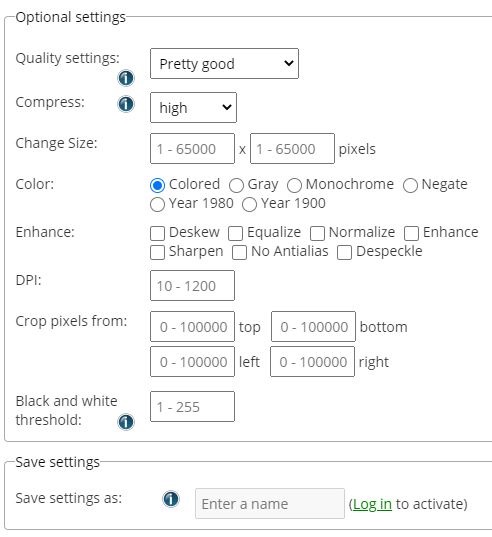
Test Results:
- Frames Extracted: 51 of 300
- Issues: The cloud engine severely throttled the frame sampling rate, dropping more than 80% of the frames.
Rating: ★★☆☆☆ (2/5) — Too many dropped frames to produce a smooth scroll scrubbing experience.
Testing Desktop Software
3. VLC Media Player
VLC is universally known as a media player, but few users realize it includes a built-in Scene Video Filter capable of dumping video frames to a local folder during playback.
How to Export Frames in VLC (Step-by-Step):
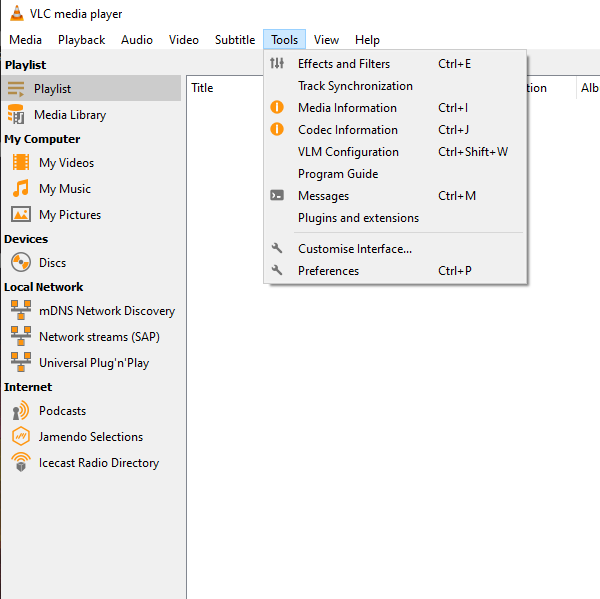
- Enable Advanced Settings: Open VLC, navigate to Tools → Preferences, and select All at the bottom left.
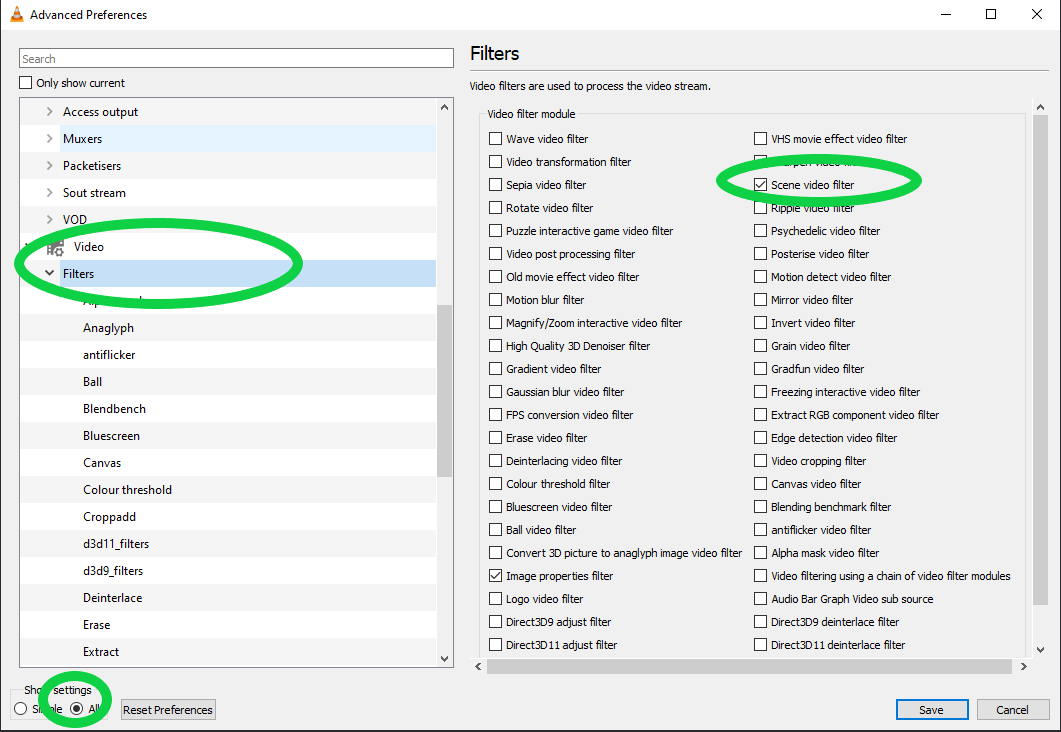
- Activate Scene Filter: Go to Video → Filters and check the Scene video filter box.
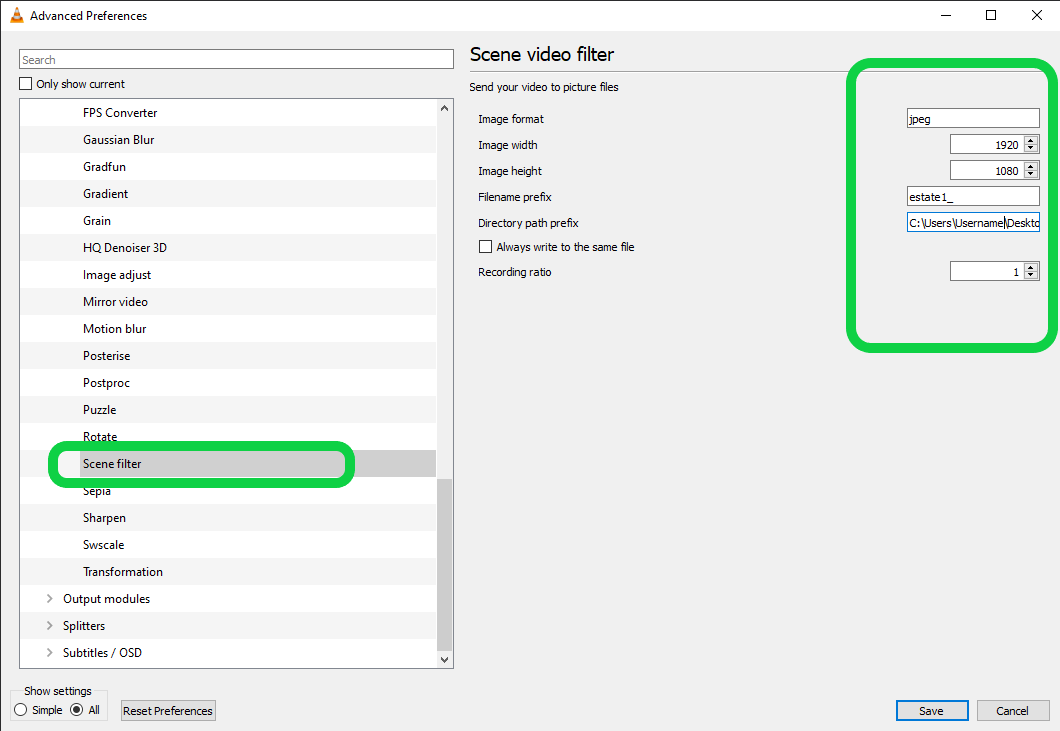
- Configure Scene Filter: In the left sidebar under Filters, click Scene filter:
- Set Image format (
jpgorpng). - Set Image width and Image height to match your source (e.g.
1920×1080). - Set Filename prefix and Directory path prefix where frames should be saved.
- Important: Set Recording ratio to
1(1 = every frame, 2 = every 2nd frame).
- Set Image format (
- Play the Video: Play the video from start to finish. VLC dumps frames to your folder in real-time.
Test Results:
- Frames Extracted: 280 of 300
- Observations: Because VLC extracts frames during live playback, frame drops can happen if your CPU or disk hits a bottleneck. A reliable workaround is slowing playback speed to 0.25x or 0.5x, though this may occasionally introduce duplicate frames that need manual pruning.
Rating: ★★★★☆ (4/5) — A very capable GUI solution if you already have VLC installed.
4. FFmpeg (The Undisputed Champion)
FFmpeg is the open-source industry standard for video and audio processing, powering the backends of YouTube, HandBrake, and countless online converters.
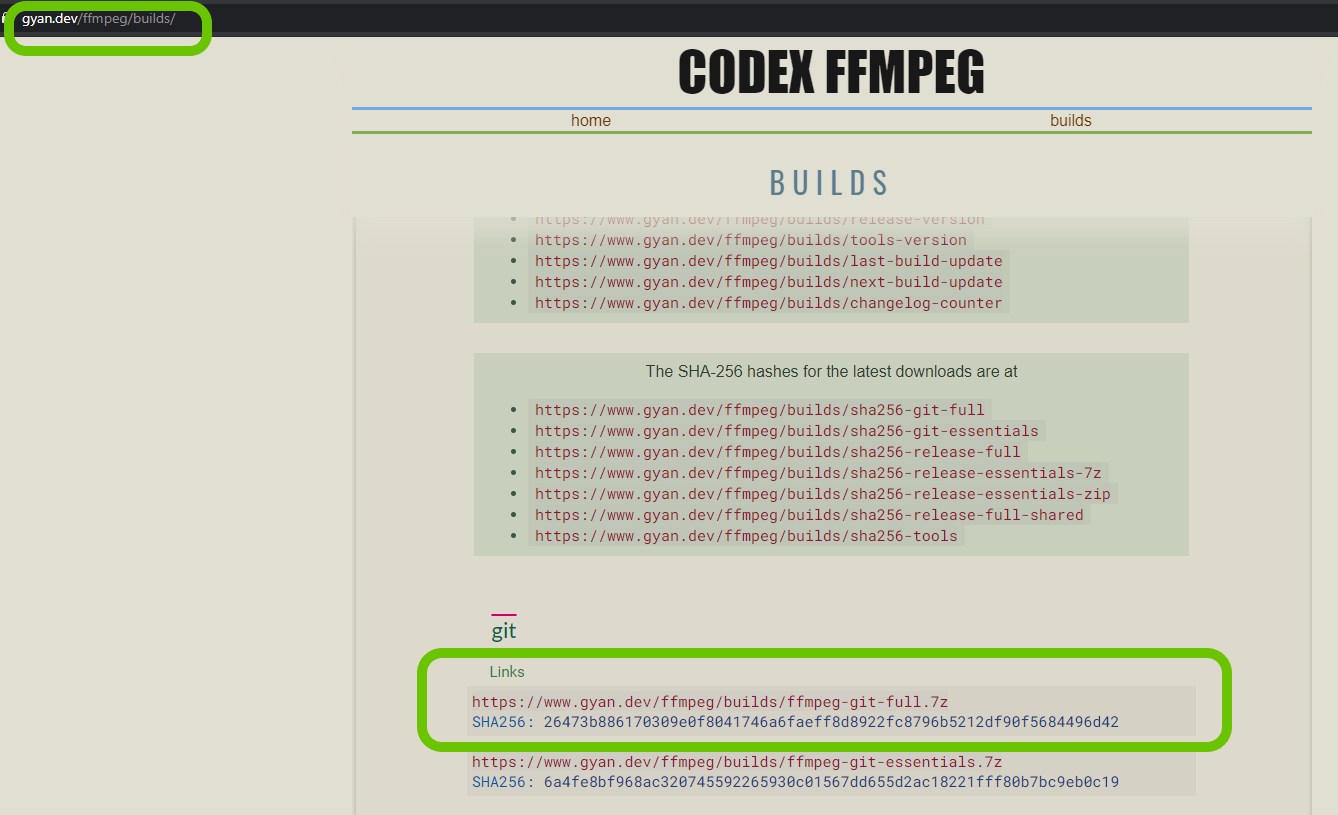
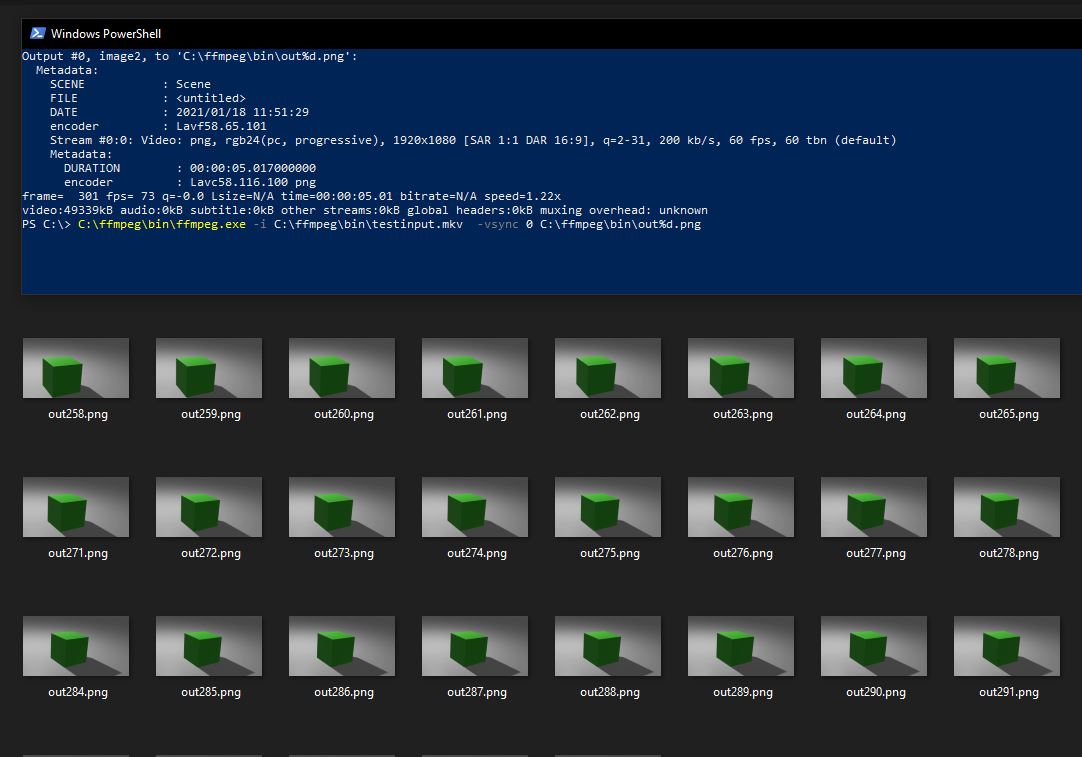
While FFmpeg runs via the command line, it guarantees 100% frame precision, full native resolution, and zero dropped frames.
Quick FFmpeg Commands:
To extract all frames from a video at maximum JPG quality:
ffmpeg -i input.mp4 -qscale:v 2 output_%04d.jpgTo extract lossless PNG frames:
ffmpeg -i input.mp4 output_%04d.pngTo extract directly to modern WebP frames:
ffmpeg -i input.mp4 -c:v libwebp -lossless 0 -q:v 85 output_%04d.webpTo downscale and extract in a single command (e.g. 1080p width while maintaining aspect ratio):
ffmpeg -i input.mp4 -vf "scale=1920:-1" -qscale:v 2 output_%04d.jpgTest Results:
- Frames Extracted: 300 of 300 (Exact 100% match)
- Time: Completed in under 2 seconds.
- Accuracy: Zero frame loss, zero duplicates, perfect color reproduction.
Rating: ★★★★★ (5/5) — The clear winner. Fast, scriptable, lossless, and 100% frame accurate.
5. VClip
VClip is a minimalist Windows screen recorder built on top of FFmpeg. Rather than converting an existing video file, it captures a defined rectangle of your screen.
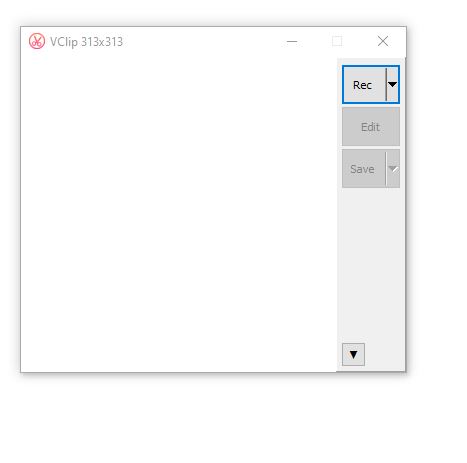
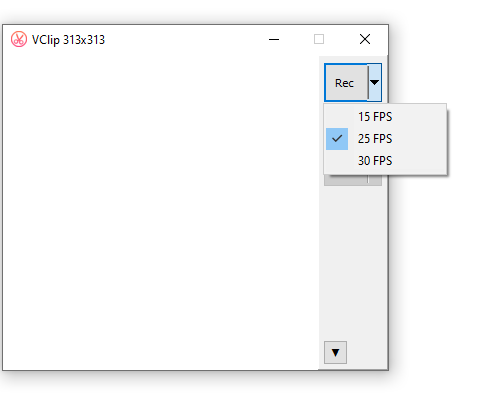
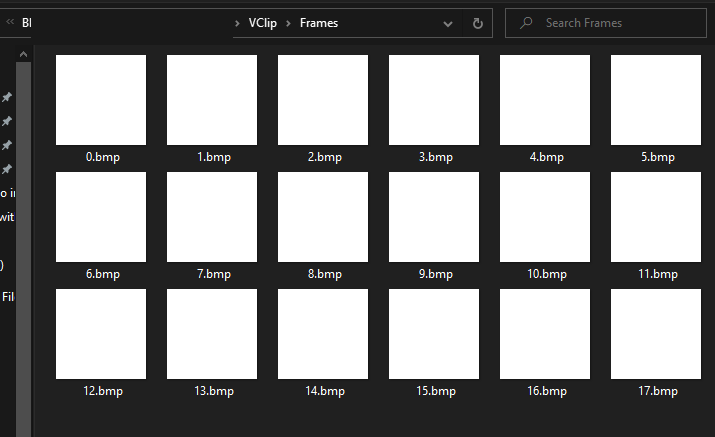
How to Retrieve Frames in VClip:
While VClip's GUI only saves to video formats, it writes uncompressed .bmp image frames to a Frames/ temporary subfolder inside its application directory before encoding. You can copy the raw frames from that folder before finalizing the recording.
Test Results:
- Frames Extracted: 150 of 300
- Limitations: Only supports 15, 25, and 30 FPS recording (cannot capture 60 FPS video). Output is uncompressed
.bmponly, requiring a secondary format conversion.
Rating: ★★★☆☆ (3/5) — Handy if you need to quickly record a region of your screen without saving a local video file first.
Verdict & Best Practices
- For Production Scroll Animations: Use FFmpeg. It guarantees that every single frame is extracted at native resolution with zero dropped frames or accidental duplicate frames.
- For a GUI Alternative: Use VLC Media Player with the Scene Video filter set to recording ratio
1and playback speed slightly reduced. - Avoid Web Converters for Large Hero Sequences: Online tools like Ezgif and Online-Convert heavily compress resolutions and drop frames to reduce server load.
Next Steps: Optimize Your Image Sequence
Once your frames are extracted, optimizing their file sizes is essential for fast page loading and smooth canvas playback.
- Read our guide on Bulk Image Optimization Options to compress your frame sequences with minimal visual loss.
- Learn the complete development pipeline in Video Scroll in Webdesign: The Ultimate Guide.
- Explore our architectural guide on Scroll Image Animation (2026).
Read more

React Example
React Example
Video Scroll in Webdesign: The Ultimate Guide
Everything you need to know about video scroll animations in 2026: how they work, the 3 technical approaches, performance, SEO, and how Scrollsequence modernizes the workflow.
Scroll Image Animation: The Complete Guide (2026)
A comprehensive guide to scroll-driven image sequence animations: history, real-world examples, performance, SEO, and the best implementation methods across WordPress, GSAP, Motion, Anime.js, and Scrollsequence.